So the first question is: what is the difference between a company and a company code?
A company is an organization that can be seen as a legal entity. The most important detail is that a company can have multiple company codes.
To understand this better, let’s look at a real-world example.
Imagine Volkswagen Group. It is a German company but has operations in several countries. While all of its subsidiaries belong to the same organization, each country must maintain its own accounting records and comply with local legal and tax regulations.
| SAP COMPANY | SAP COMP CODE | LEGAL ENTITY |
|---|---|---|
| Volkswagen Group | DE01 | Volkswagen AG (Germany) |
| Volkswagen Group | UK01 | Volkswagen Group UK Ltd |
| Volkswagen Group | ES01 | Volkswagen Group España Distribución |
In this example, all three entities belong to Volkswagen Group, but each company code maintains its own accounting data and financial statements.
A Company is primarily used for consolidated reporting across multiple legal entities, whereas a Company Code is the smallest organizational unit in SAP for which a complete set of accounts can be maintained. All accounting transactions, such as invoices, payments, and journal entries, are posted at the company code level.
Let’s get started with how to create a company in the SAP screen.
Creating a Company in SAPStep 1
You need to log into your SAP server. In my case, I use a SAP education server that I paid for 3 months. Once you log in, you will see this screen.
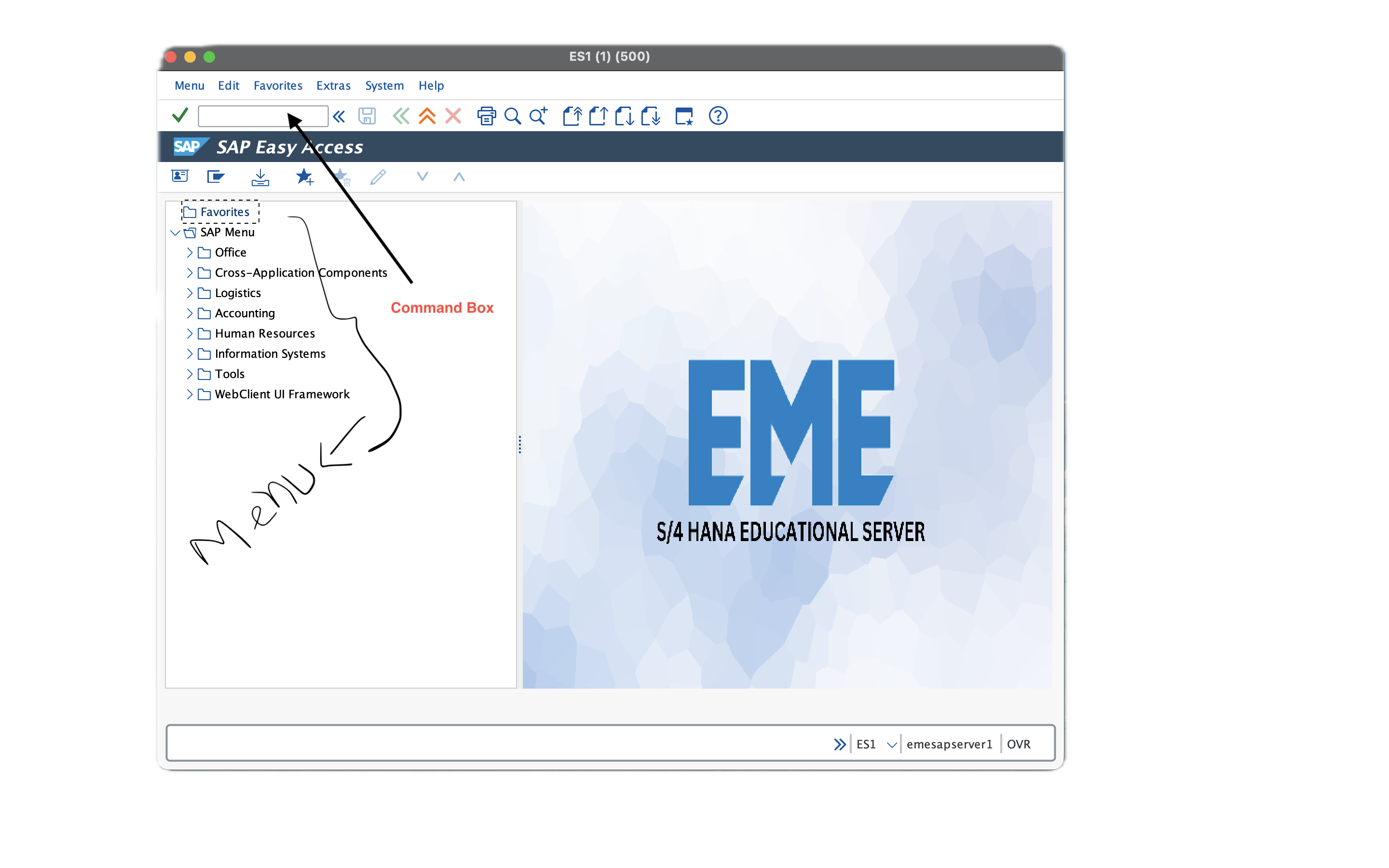
Here in the image, you can see I have marked the command box (the small rectangular box). There you can type T-CODES (transaction codes), which will take you directly to the screen you want. For example, if you type ox15, it will take you directly to the screen where company creation is done.
The other way is to manually go through the menu and find the function you want to use.
The manual way of creating a company is using the SAP Reference IMG. For that, you have to type the t-code spro in the command box. It will give you a screen like this.
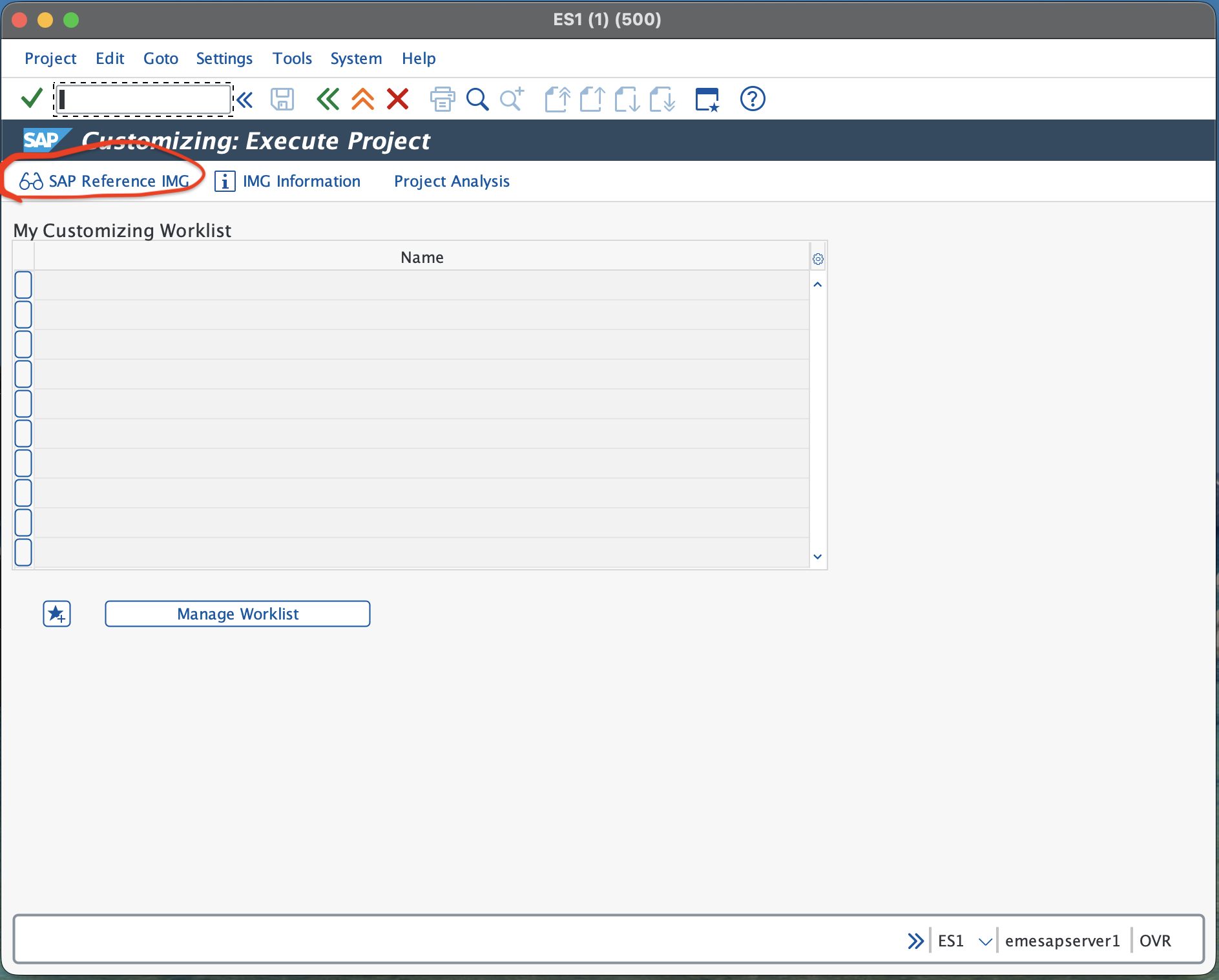
You then have to click on the SAP Reference IMG button (the red circle in the image).
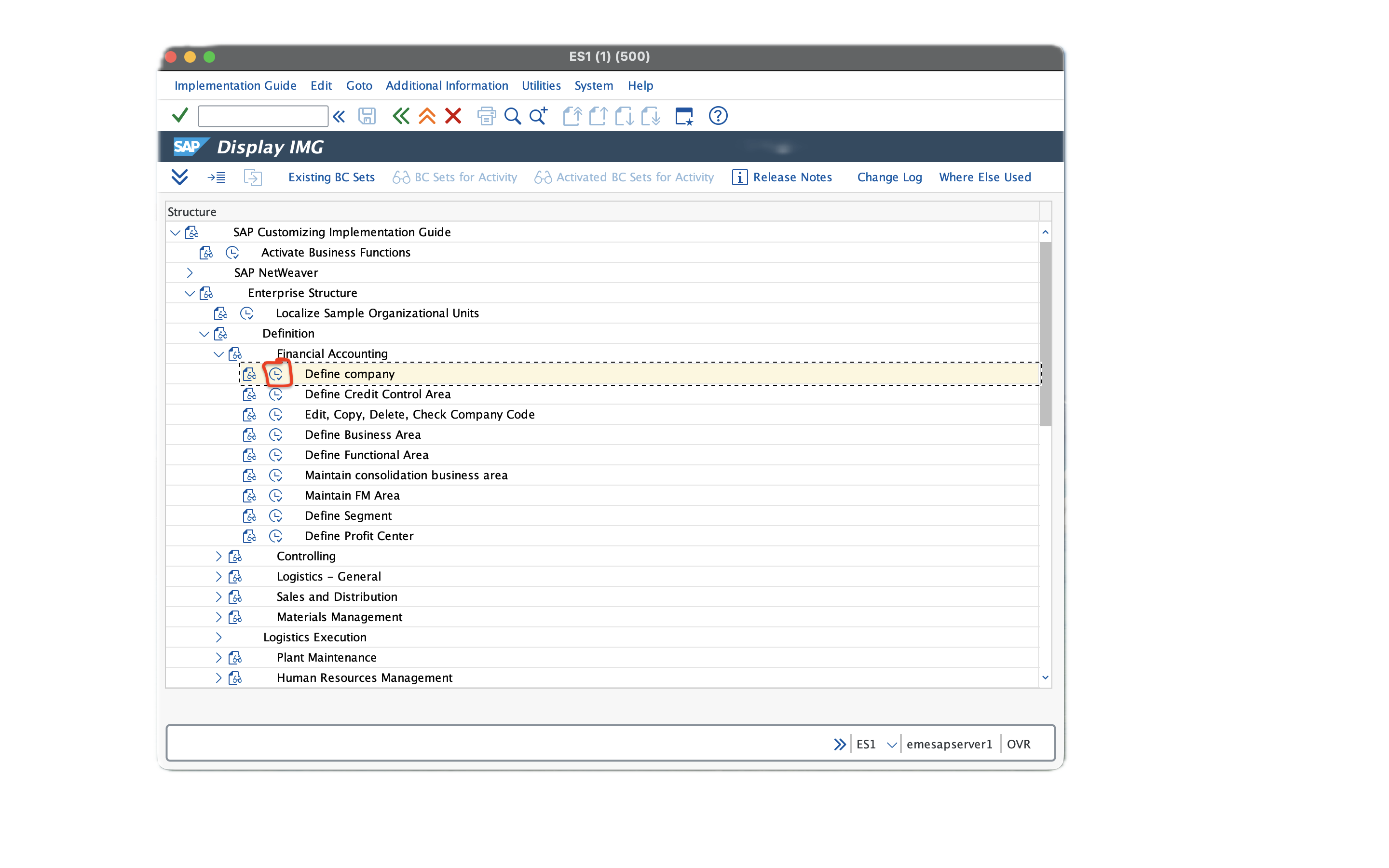
You will arrive on this screen. From there, you need to navigate to Enterprise Structure → Definition → Financial Accounting → Define Company and then click on the red-marked button in the image above. This will take you to the company creation screen. This is the manual method, and the much easier way would be to use the ox15 t-code, which takes you directly to this screen.
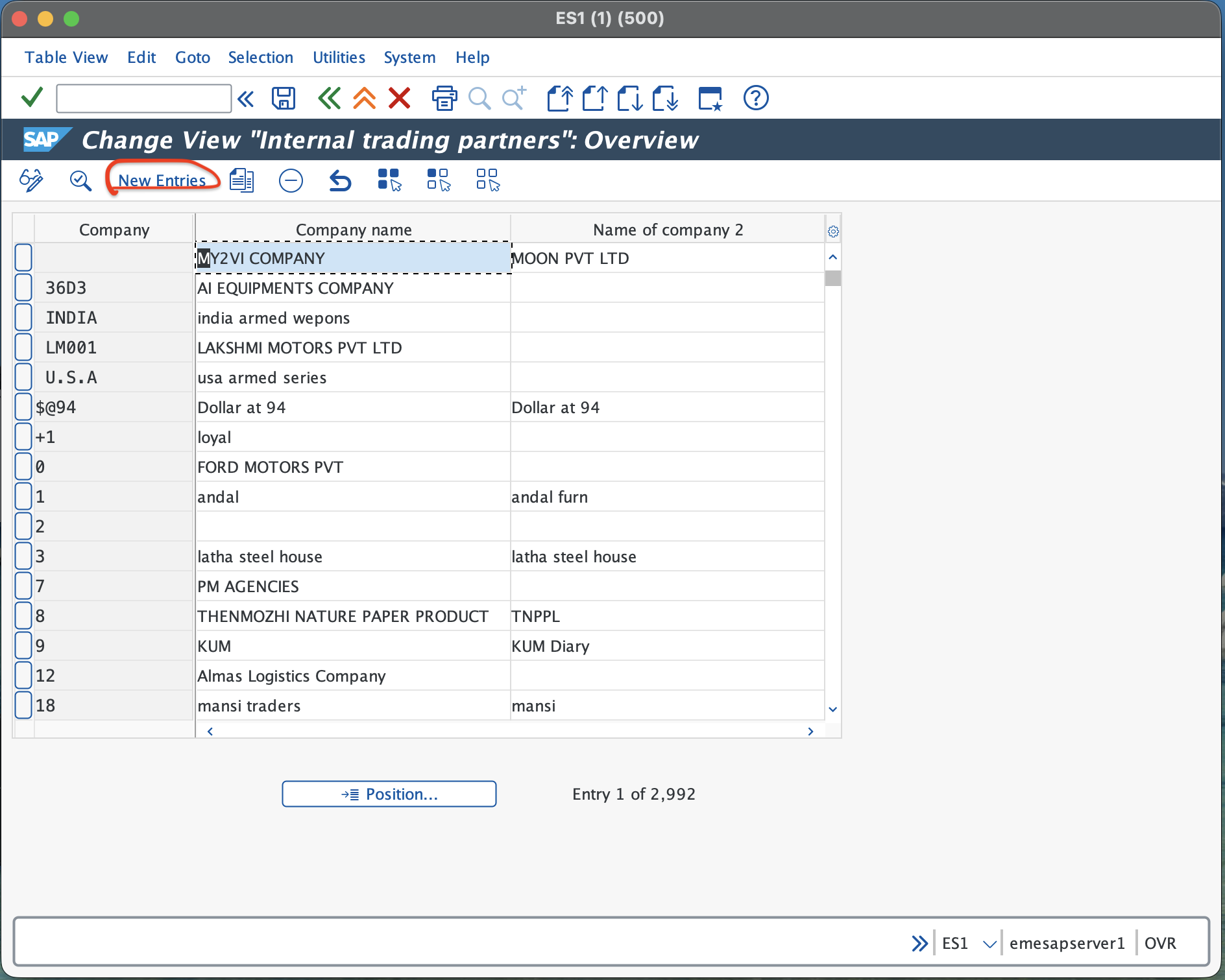
Step 2
From this screen, select the “New Entries” button. As a side note, you are seeing many companies here because it is an education server and, like me, many people are using it.
When you click on “New Entries”, you will arrive on this screen.
Step 3
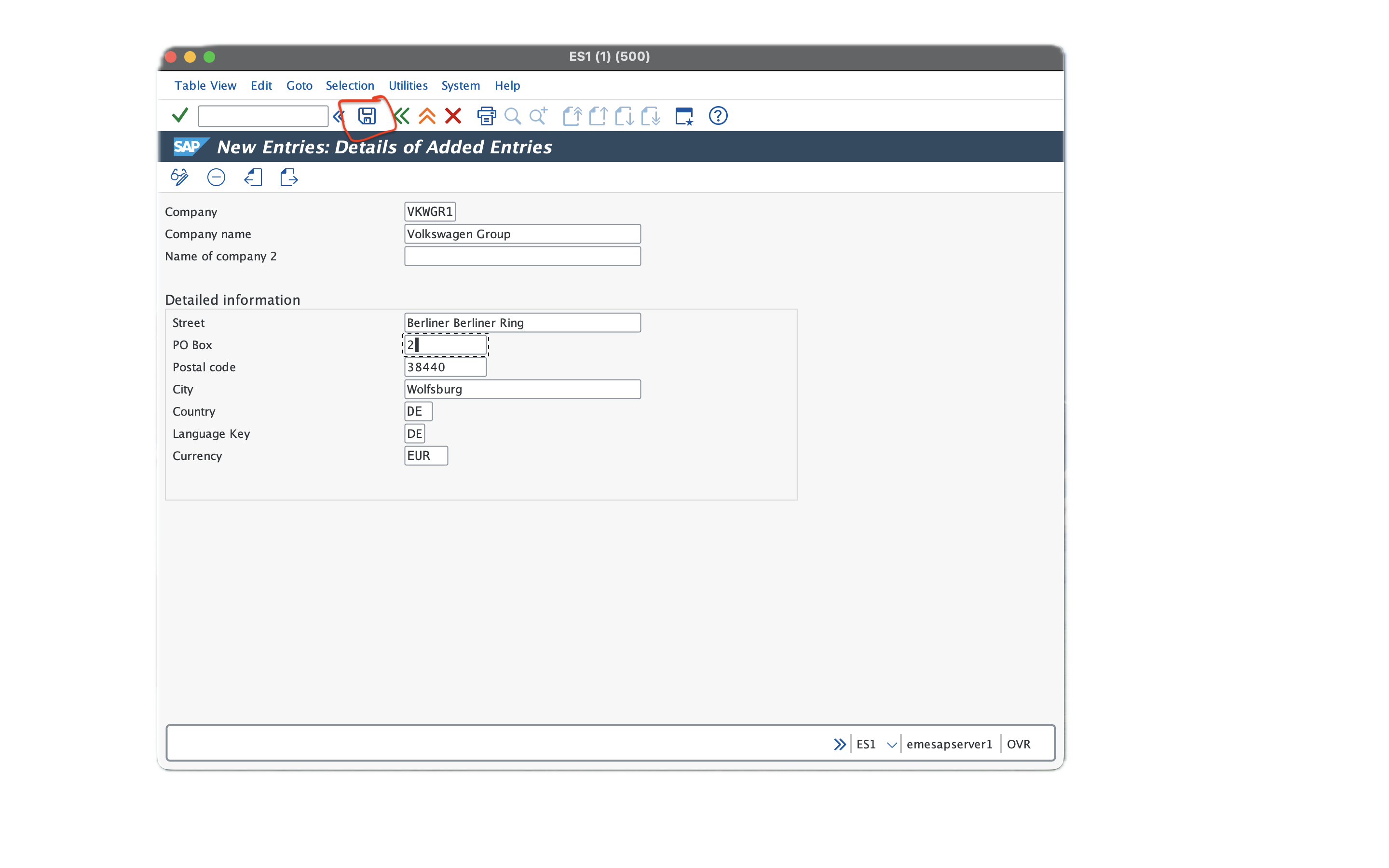
The first line is the company - a six-digit alphanumeric code that you assign to identify the company. The second line is the company name, which is self-explanatory. “Name 2” can usually be left as it is.
In the next section, we will fill in the address. One important point is that the country is mandatory. The country appears as a code, as you can see in my example DE (Germany), and the language DE (German), and the currency EUR. You must select all of these from the available options.
Once you are done, click the save button at the top (I have marked it with a red circle). A window may appear like this.
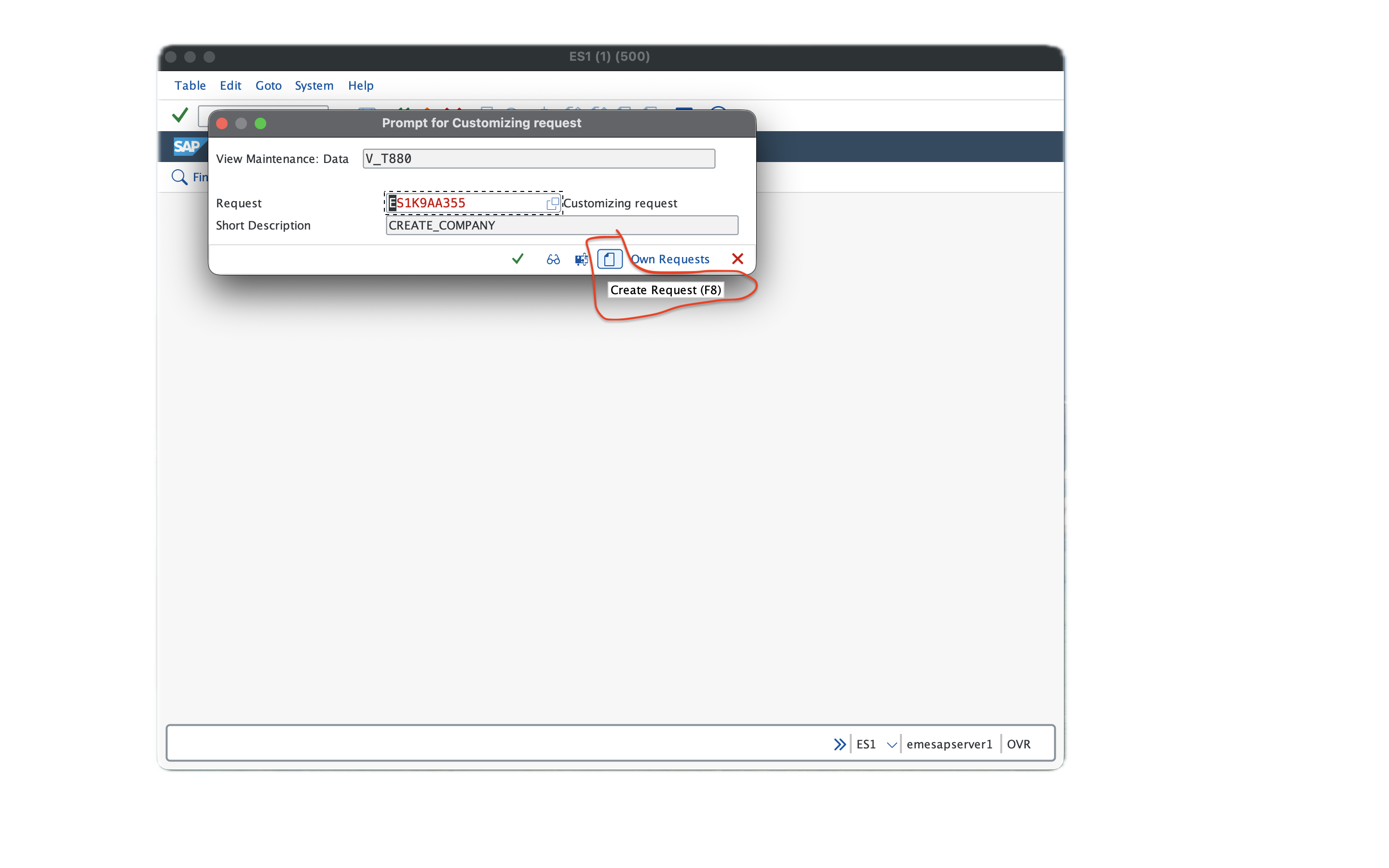
Here you have to click the “Create Request” button and provide a short description of the transaction, such as “creation of company”. The underlying concept of transport requests is a whole other topic. Basically, it is a container that stores configuration changes so they can be moved from one system to another, for example from development to testing and from testing to production.
Press the green tick button after everything is done, and you will see in the status bar that the data has been saved. Congratulations, you have now created a company in SAP.
How do I locate the created company?
Yes, we might need to locate the company if we want to make changes to the details we have entered.
If you are not on the SAP home screen, you need to use /n along with the t-code; otherwise, it will not work. For example, /nox15 will take you to the company creation screen. Now you will see a button called “Position”. Clicking on it will open a pop-up window like this.
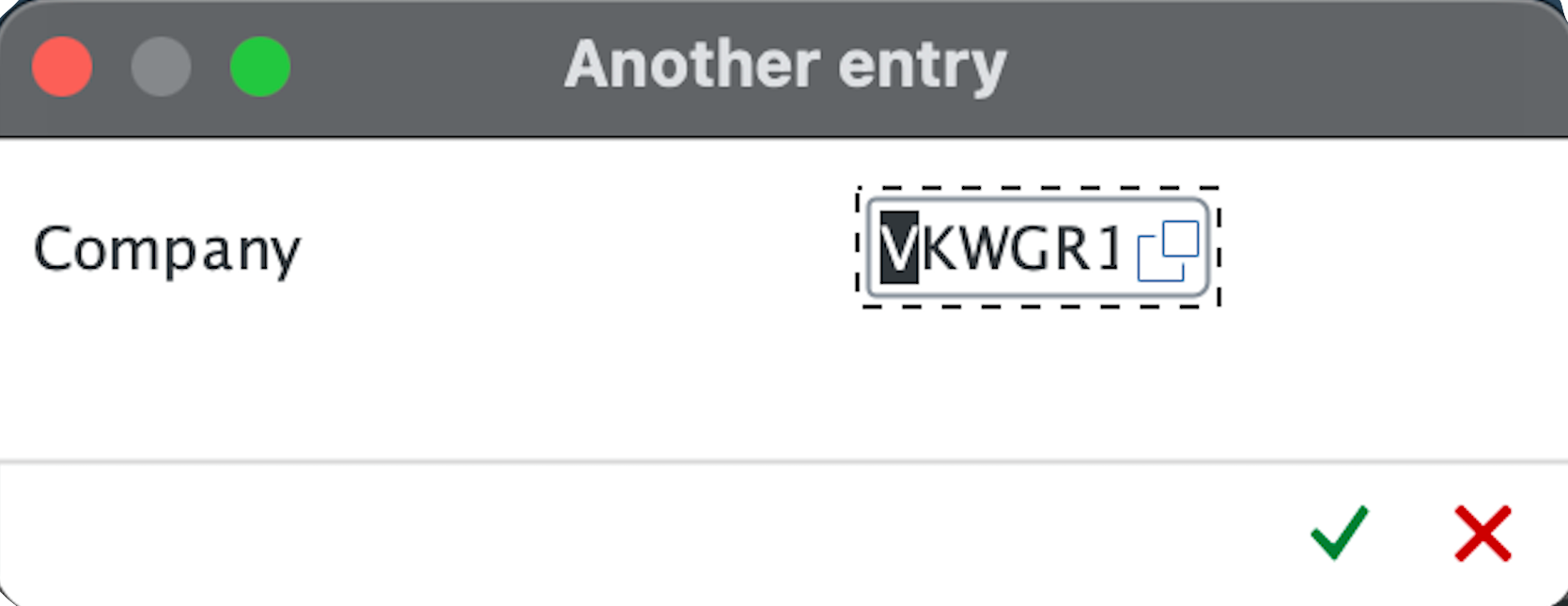
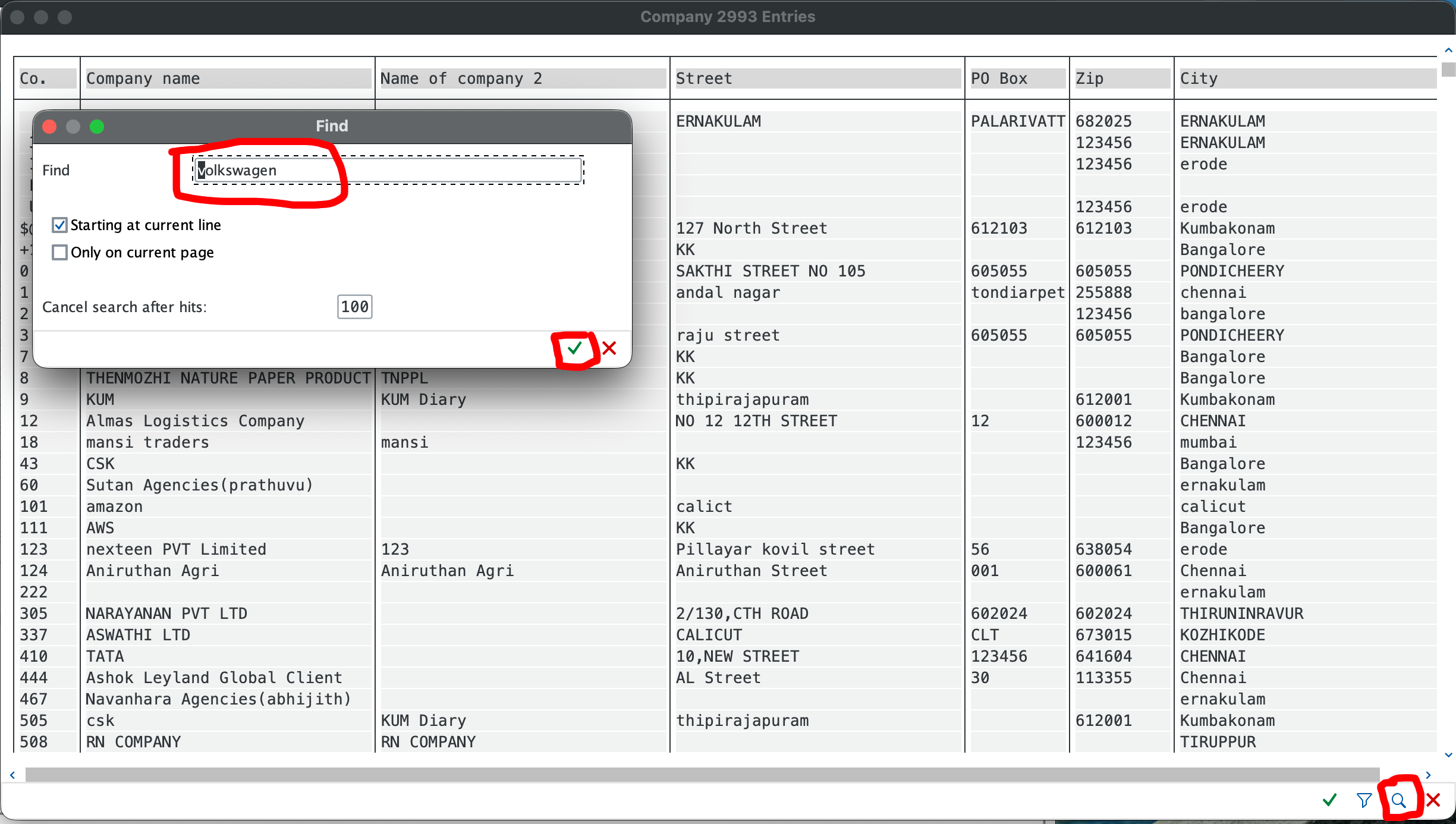
In this window, you enter the six-digit alphanumeric code you used for your company. In my case, it is VKWGR1. If I click the green check mark, my company will appear at the top of the list. Another option is to use the search fields to filter by company name.
That’s all regarding company creation. Now let’s move on to how to create a company code.
Creating a Company Code in SAPStep 1
Just like company creation, we can use either SAP Reference IMG or a transaction code. The transaction code for company code creation is ox02. The other approach is to use SAP Reference IMG by entering the t-code spro and navigating to Enterprise Structure → Definition → Financial Accounting → Define, Edit, Copy, Delete Company Code.
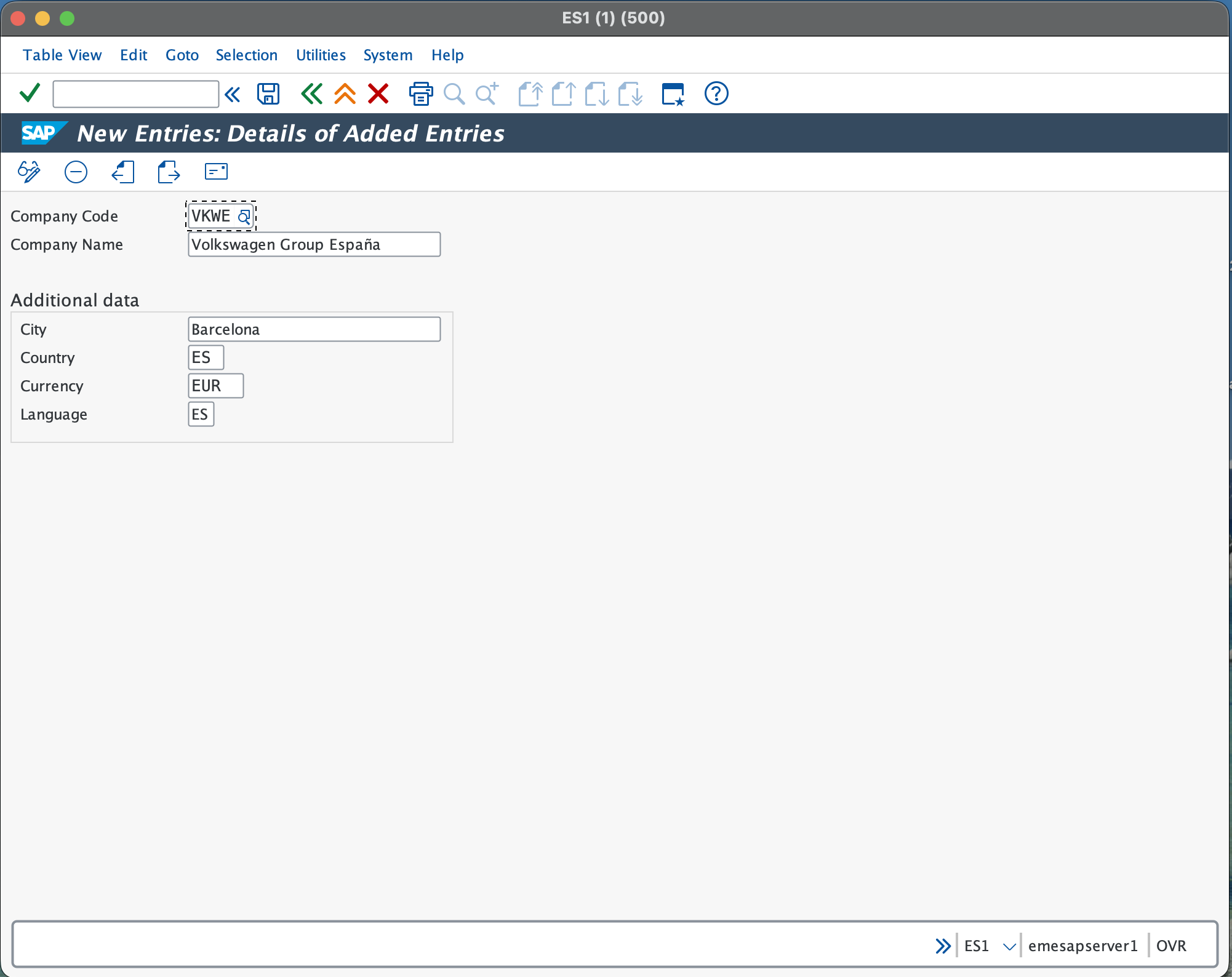
You will reach the same screen as in company creation, and from there it is the same process: click “New Entries” and you will be redirected to a screen like this.
Step 2
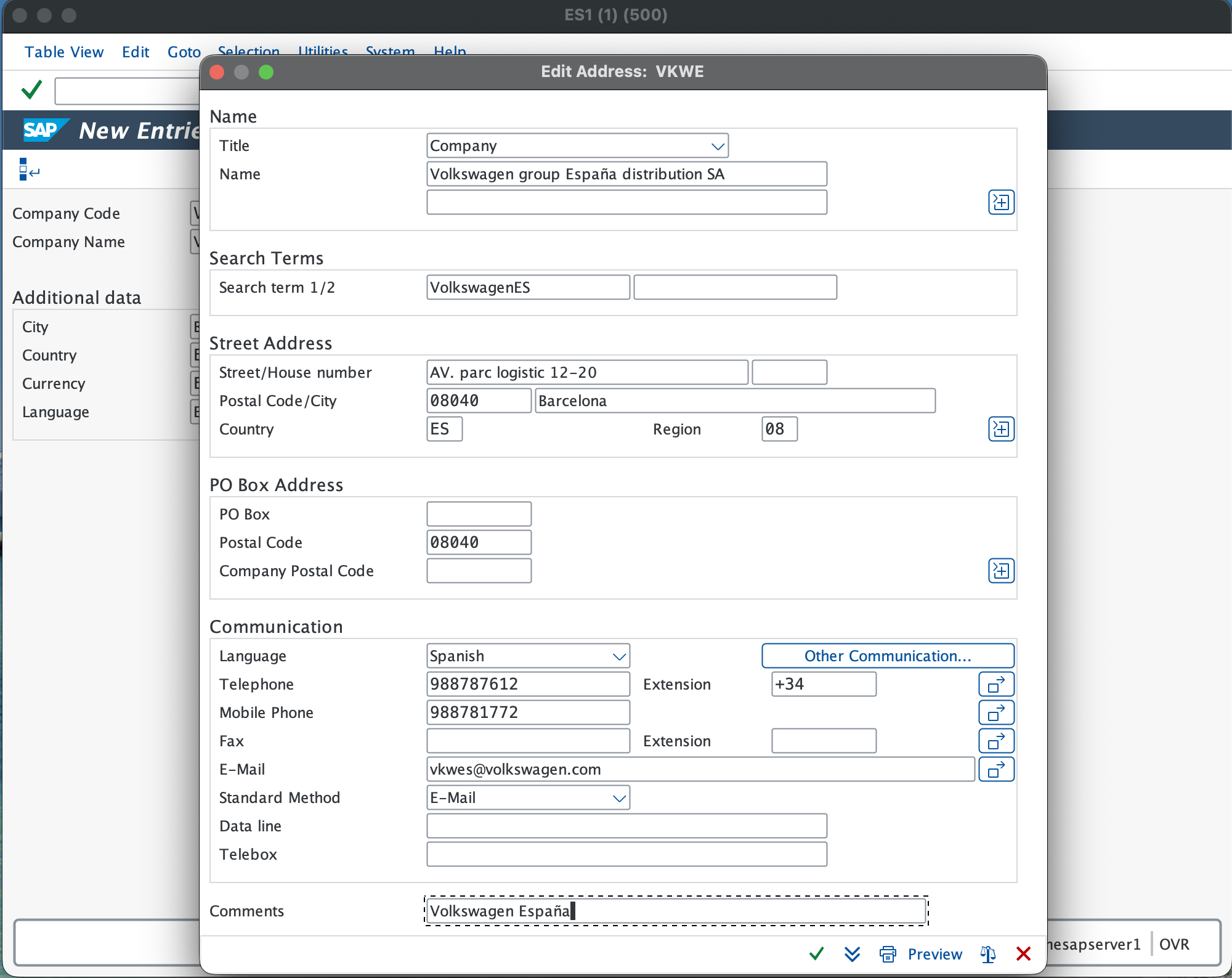
Here the company code is a 4-digit alphanumeric code. I chose VKWE to represent Volkswagen España Distribution. The rest of the data is easy to fill in: company name, city, country, language, and currency. Once you fill in this information, click the save button at the top. A window will pop up like this.
Step 3
Here we need to complete additional information about the company code we created. The first line is the title; you have multiple options, but most of the time it will be “Company”. The second line is the full company name. The search terms help you find the company code more easily when needed.
In the address section, you must fill in the country, as it is a mandatory field; without it, you cannot proceed with the creation of the company code.
The communication section can be filled with sample data for learning purposes. In real projects, this information will be provided and must be entered accordingly.
After filling in all the relevant data, click the green tick at the bottom. You will be prompted for a transport request; confirm it again, and you will see a “data saved” message in the status bar. You have now successfully created a company code in SAP.
How to find your newly created company code?
The process is the same as for company creation; only the t-code changes. We use ox02, which takes us to the screen where we can see the list of company codes. From there, use the “Position” button or the search functionality to locate your company code.
Now you may be wondering: we have created a company and a company code, but where is the link between them?
In our case, Volkswagen Group is the company, and Volkswagen España is a subsidiary company, so we need to establish this connection. This is done through the assignment of company code to company. For this, we use the t-code ox16 or SAP Reference IMG, which is Enterprise Structure → Assignment → Financial Accounting → Assign Company Code to Company.
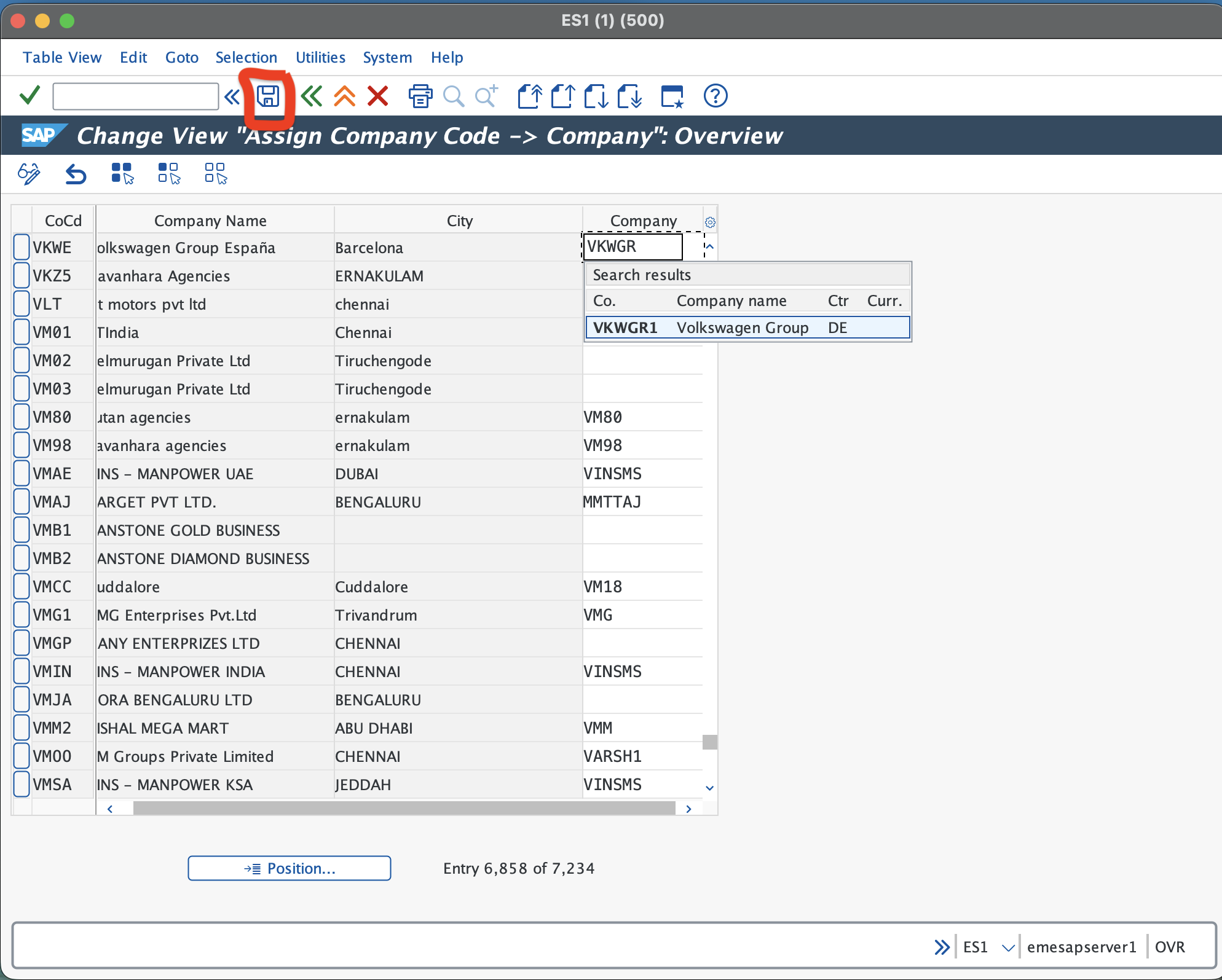
Use the “Position” button to find your company code. Once you find it, in the company column (which will be empty), enter your company code (six-digit alphanumeric code) and save. If there are any errors or warnings, they will appear in the status bar.
In my case, there was a warning that the company and company code had different currencies, because I did not assign a currency to the company (I did this intentionally, as Volkswagen Group operates in multiple countries with different currencies). I simply pressed Enter, and it was saved successfully.
And with that, we have completed the creation of the company and company code in SAP.