What is a Purchasing Organisation ?
A purchasing organisation in SAP is simply a unit in a company that is responsible for buying goods and services from supplier.
Let’s go through a real world example.
Imagine Volkswagen Group, they need lot’s of steel for the production of their cars,engines .. etc. There will be a specific team designed for the purpose of buying these raw materials in our case steel. Let’s say we call this team VW purchasing organisation. This purchasing organisation is responsible for contacting the suppliers, negotiating a deal with them, making a decision on which supplier to use, create and manage purchase contracts and also they ensure the orders are placed correctly.
Just to give you a head’s up there are different types of purchasing organisation, Enterprise purchasing organisation, Company code specific purchasing organisation, plant specific organisation, cross-plant purchasing organisation. We will take a look into them in a seperate blog. In this blog we will just focus on the basics of purchasing organisation.
How to create a Purchasing Organisation in SAP ?
To create a purchasing organisation in SAP we can eitheruse the t-code ox08 or use the spro pathway which is enterprise structure -> definition -> materials management -> maintain purchasing organisation.
I’m going to use the t-code ox08 and you will be directed to the purchasing organisation screen. From there click on new entries because you want to create one.
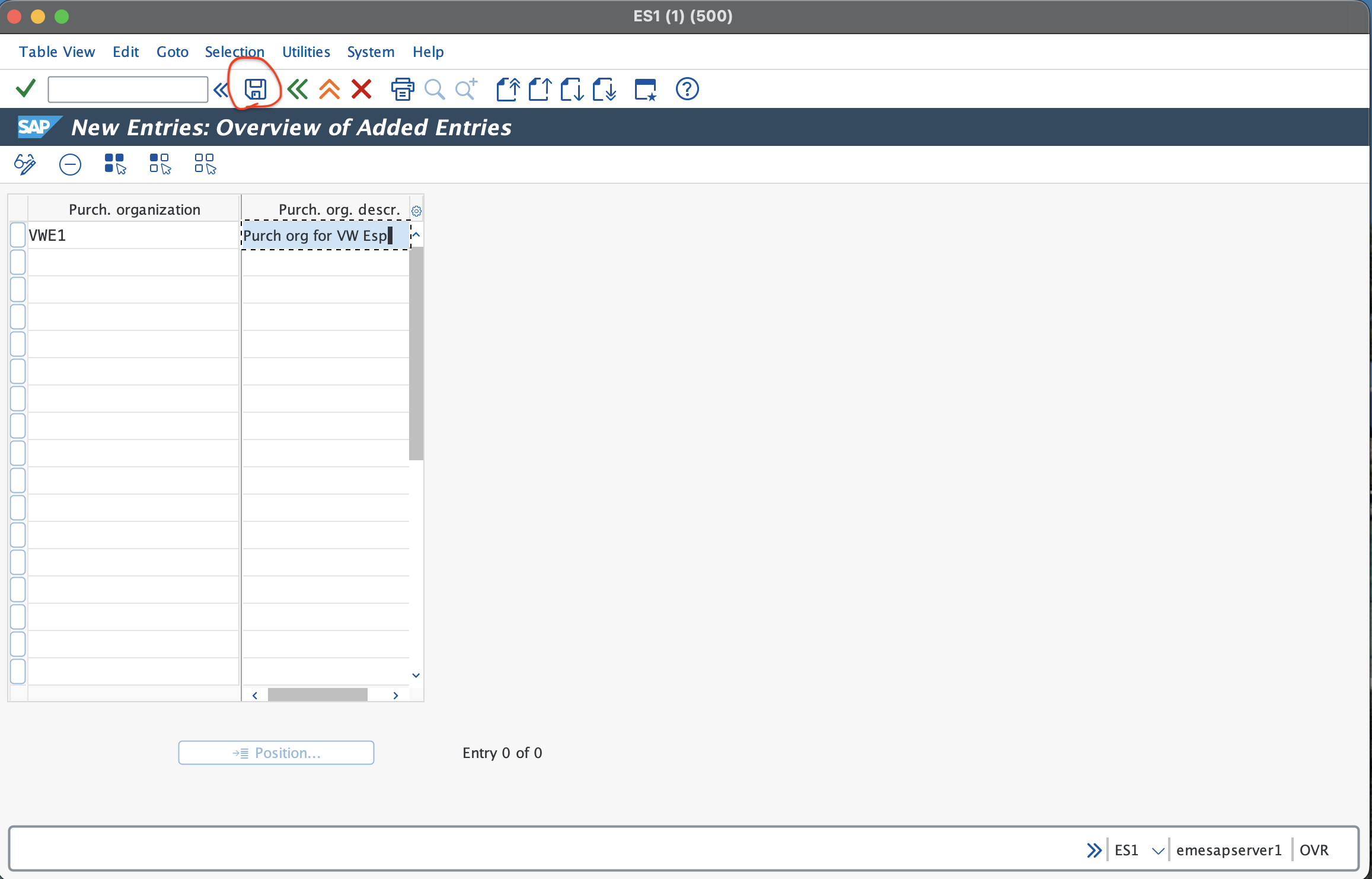
Here you will enter a 4-digit alphanumeric code for your purchasing organisation, in my case I used VWE1 and give a short description for the purchasing organisation. When you are done press on the save button on the top and you have succesfully created a purchasing organisation in SAP it is that easy.
Assigning Purchasing Organisation to Plant
The next step in the process is to link everything purchasing organisation to plant and also purchasing organisation to company code. Both are fairly straightforward here we are going to look at assignment to plant and in the next section to company code.
We can use the t-code ox17 for assignment of purchasing organisation to plant or we can use the spro pathway which is Enterprise Structure -> Assignment -> Materials Management -> Assign purchase organisation to plant.
I’m going to use the t-code ox17 to demonstrate this example.
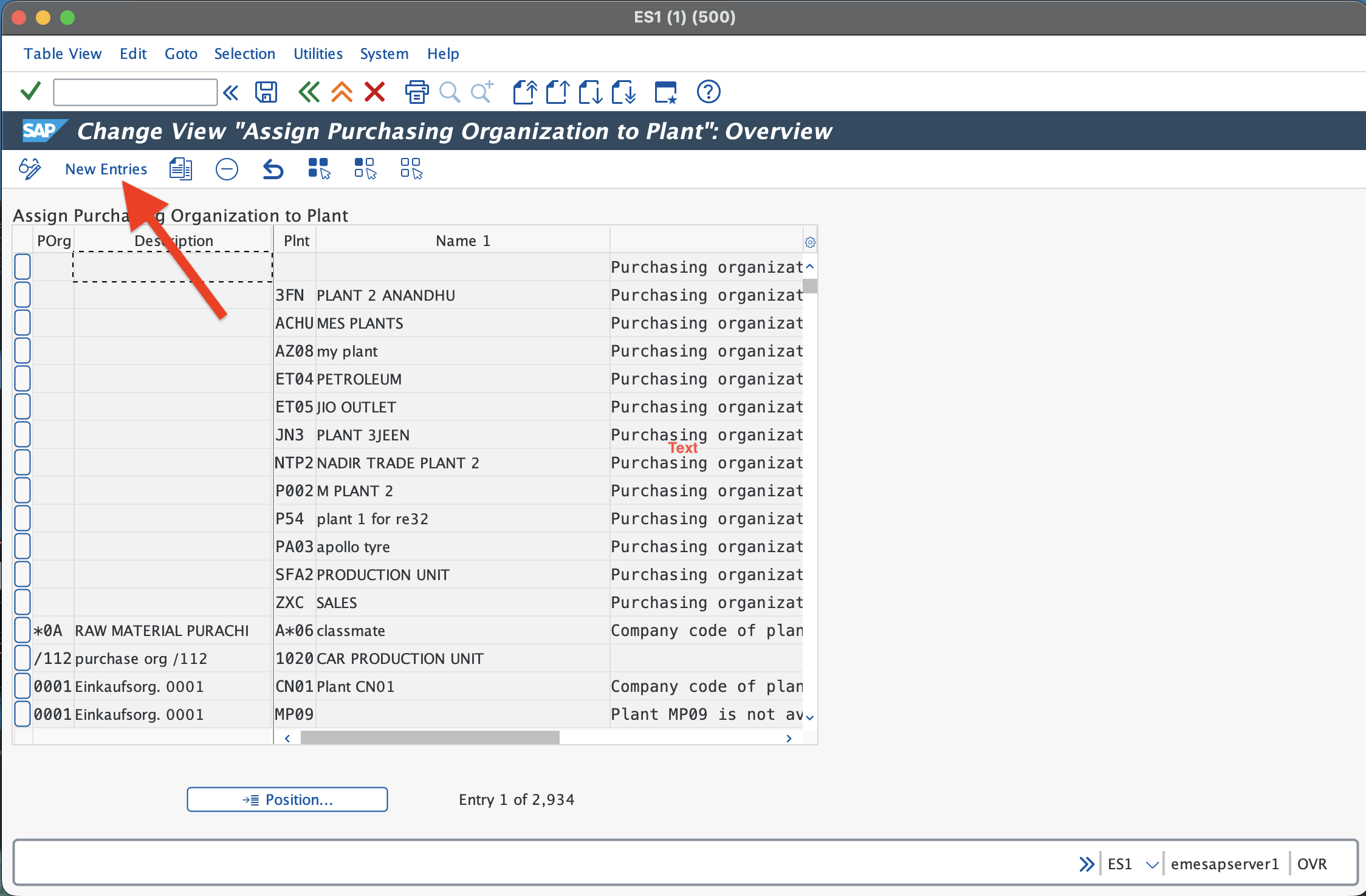
Once you are on this screen just press the new entries button.
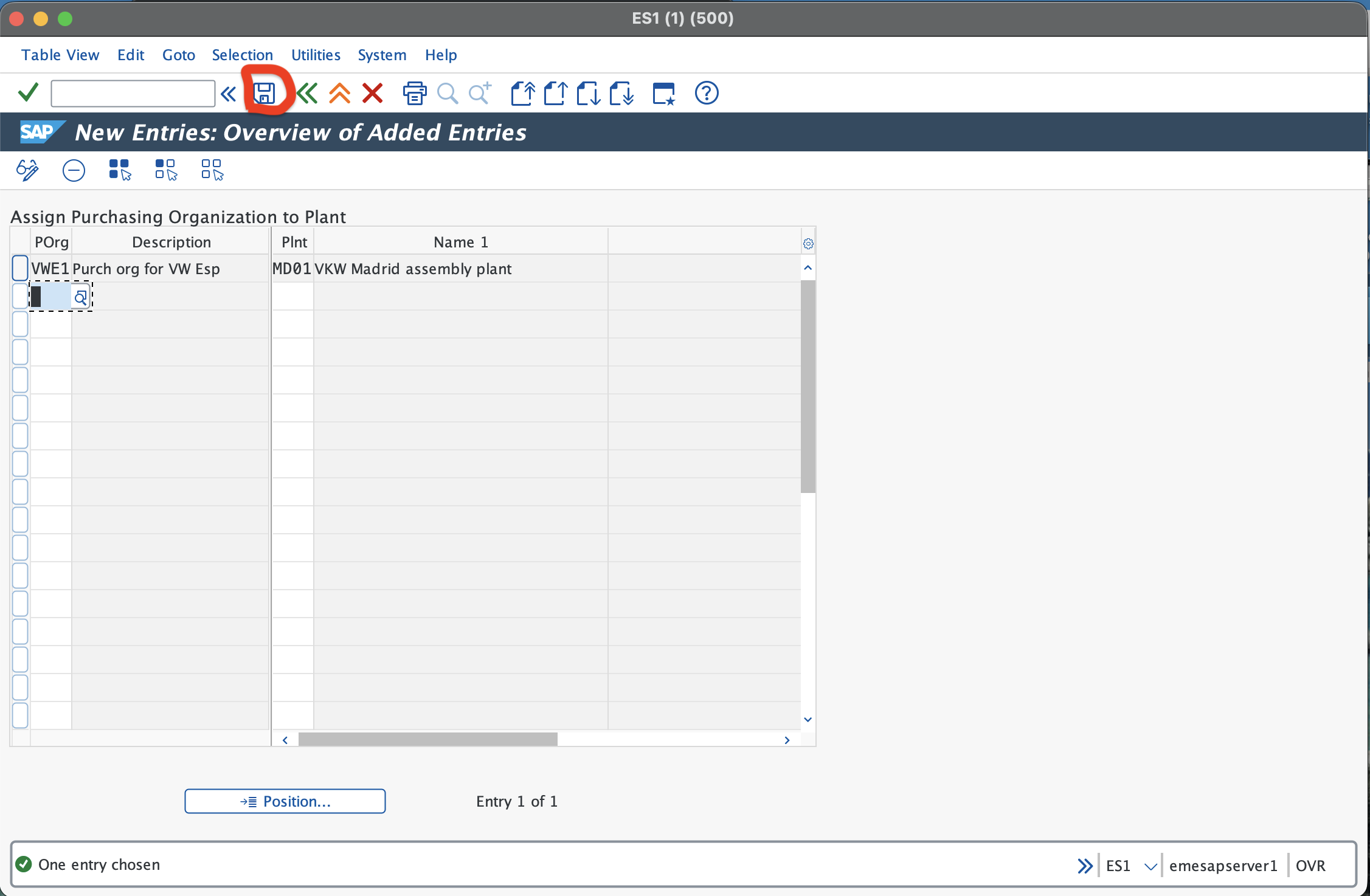
Here you need to provide your purchasing organisation code in the POrg column and in the Plnt column give the plant code then press enter on the keyboard. Now the purchasing organisation description and plant description will be automatically filled. Just press the save button on the top and the assignment to plant is complete.
Assigning Purchasing Organisation to Company Code
It’s almost the procedure for assigning purchasing organisation to company code. The t-code is ox01 and the spro pathway is nterprise Structure -> Assignment -> Materials Management -> Assign purchase organisation to company code.
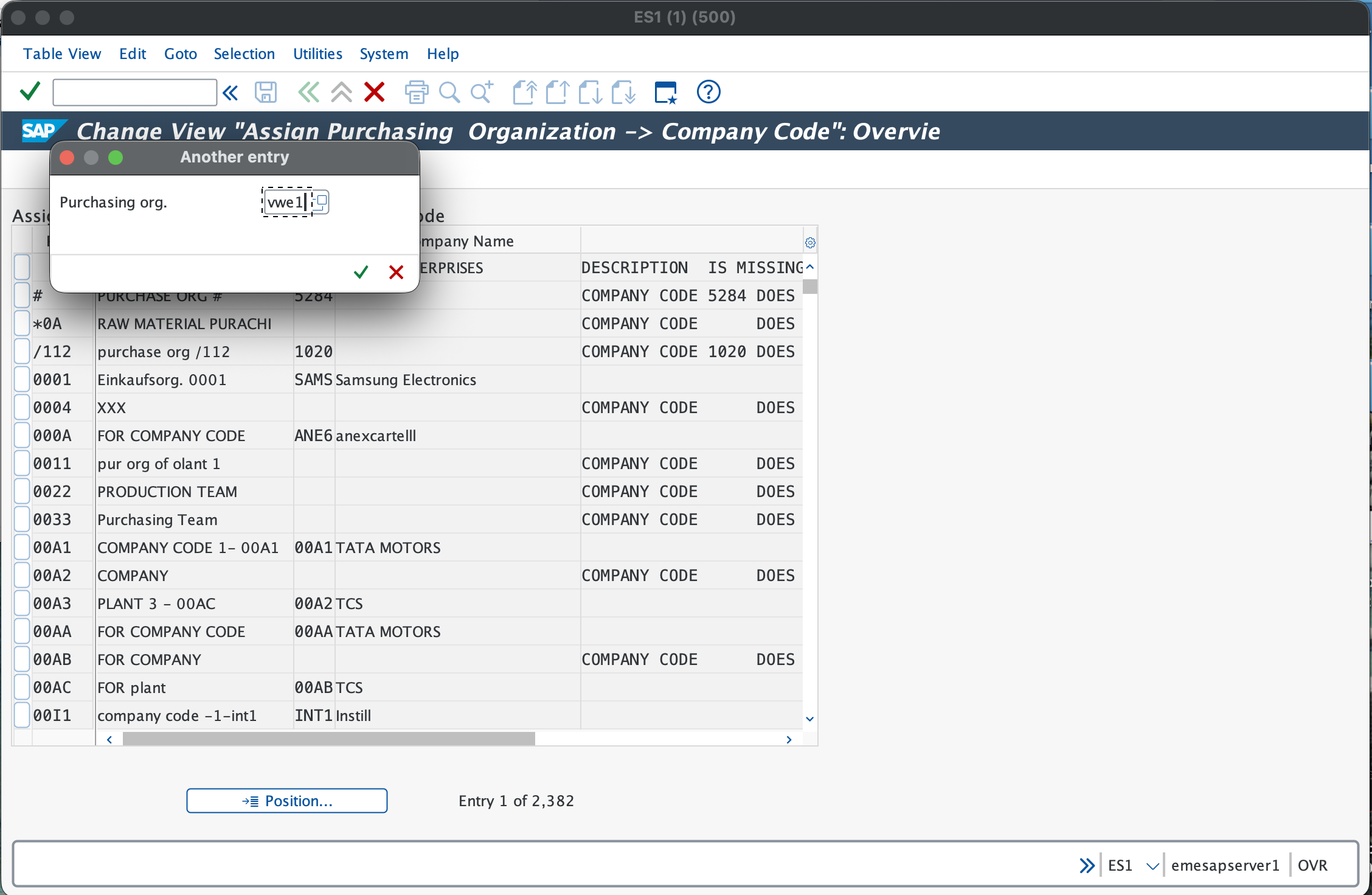
Once you are on this screen just click on the position button on the bottom which will give you a pop up window where you need to enter your 4-digit code for the purchasing organisation you created and press enter you will be taken to this window.
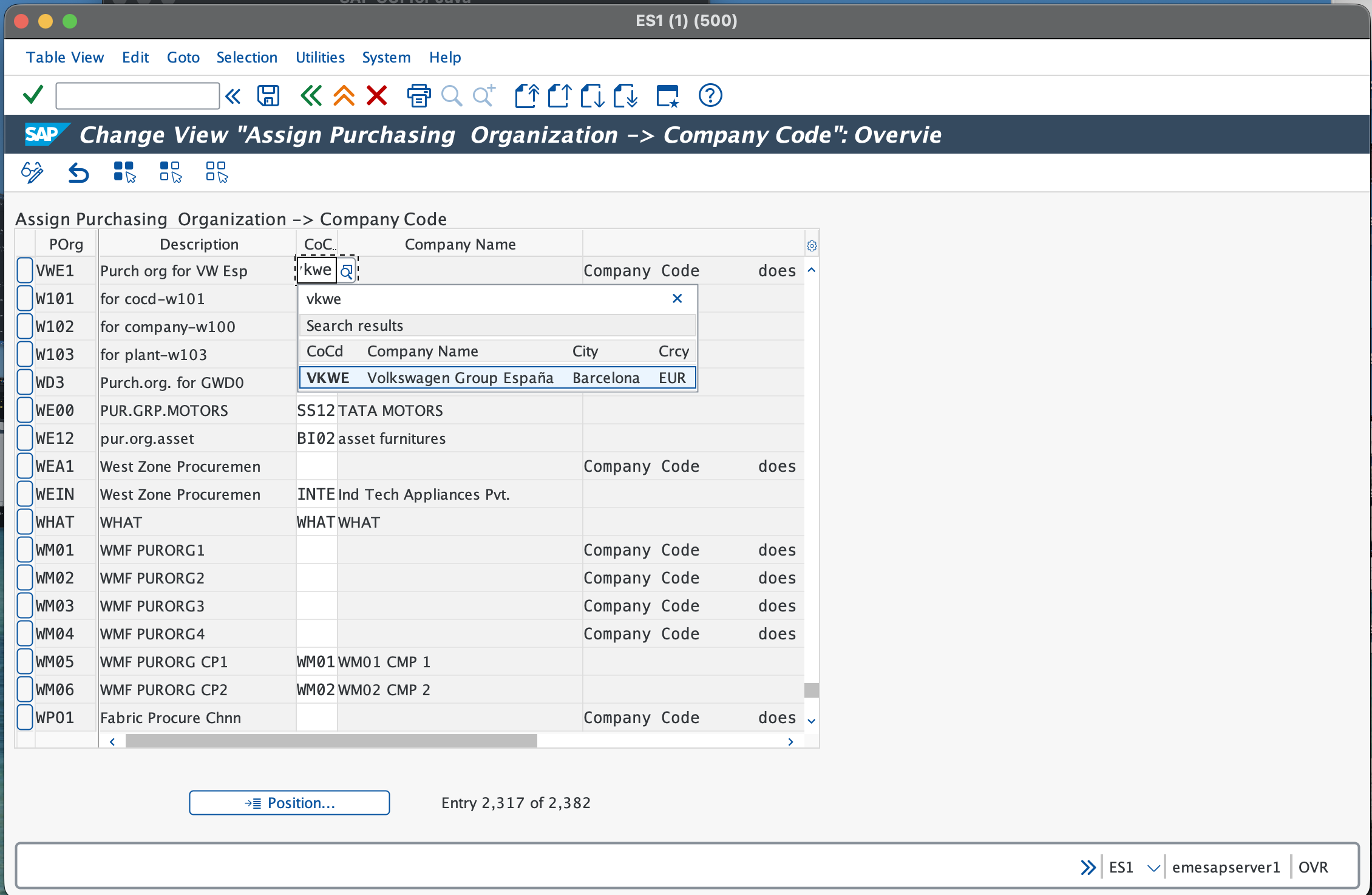
On this screen you just need to select fill in the company code column and press enter which will automatically fill your company name column. Once that is done just press the save button and a transport request will be created and press on the green tick mark. That’s it! you have now successfully linked purchasing organisation to company code.
Purchasing Group
What exactly is a purchasing group ?
Purchasing group is like the buyer or team handling the purchase. It acts more like a individual buyer for certain specific group. They are responsible for the day-day purchasing activites. They are not assigned to company codes or plants.
Examples-
001 – Steel buyer 002 – Rubber buyer 003 – IT Equipment Buyer
These are the specific groups that I was mentioning, for example one team is only concerned with the steel that is used in the manufacturing process of the car’s engine and body (coming back to our volkswagen example), also the team 002 focuses on buying rubber for the manufacturing of tyres.
Creating a Purchasing Group in SAP
Creating a purchasing group is a simple process. You can either use the t-code ome4 or the spro pathway Materials Management → Purchasing -> Create purchasing group.
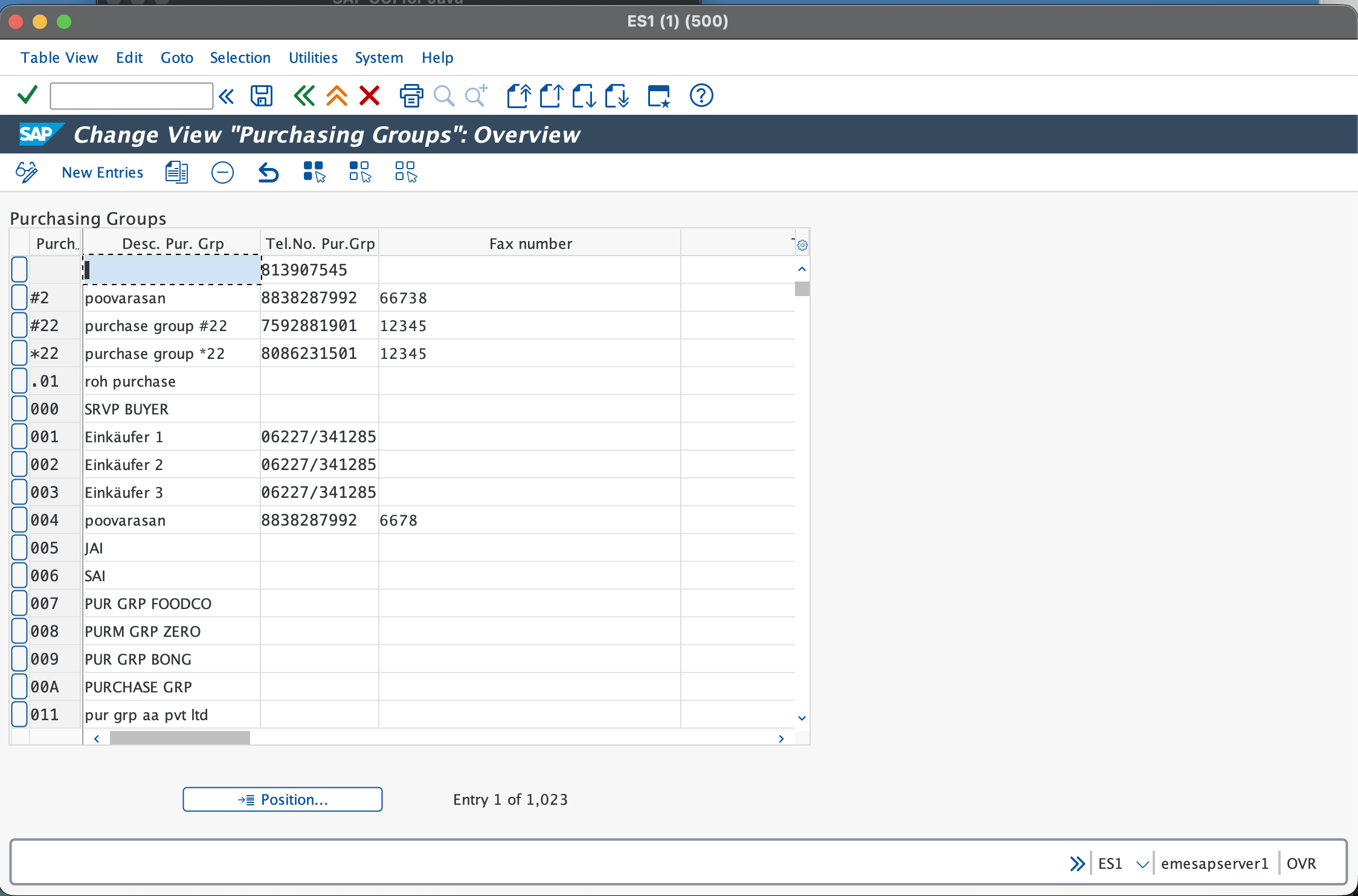
Once you enter this screen click on the new entries button.
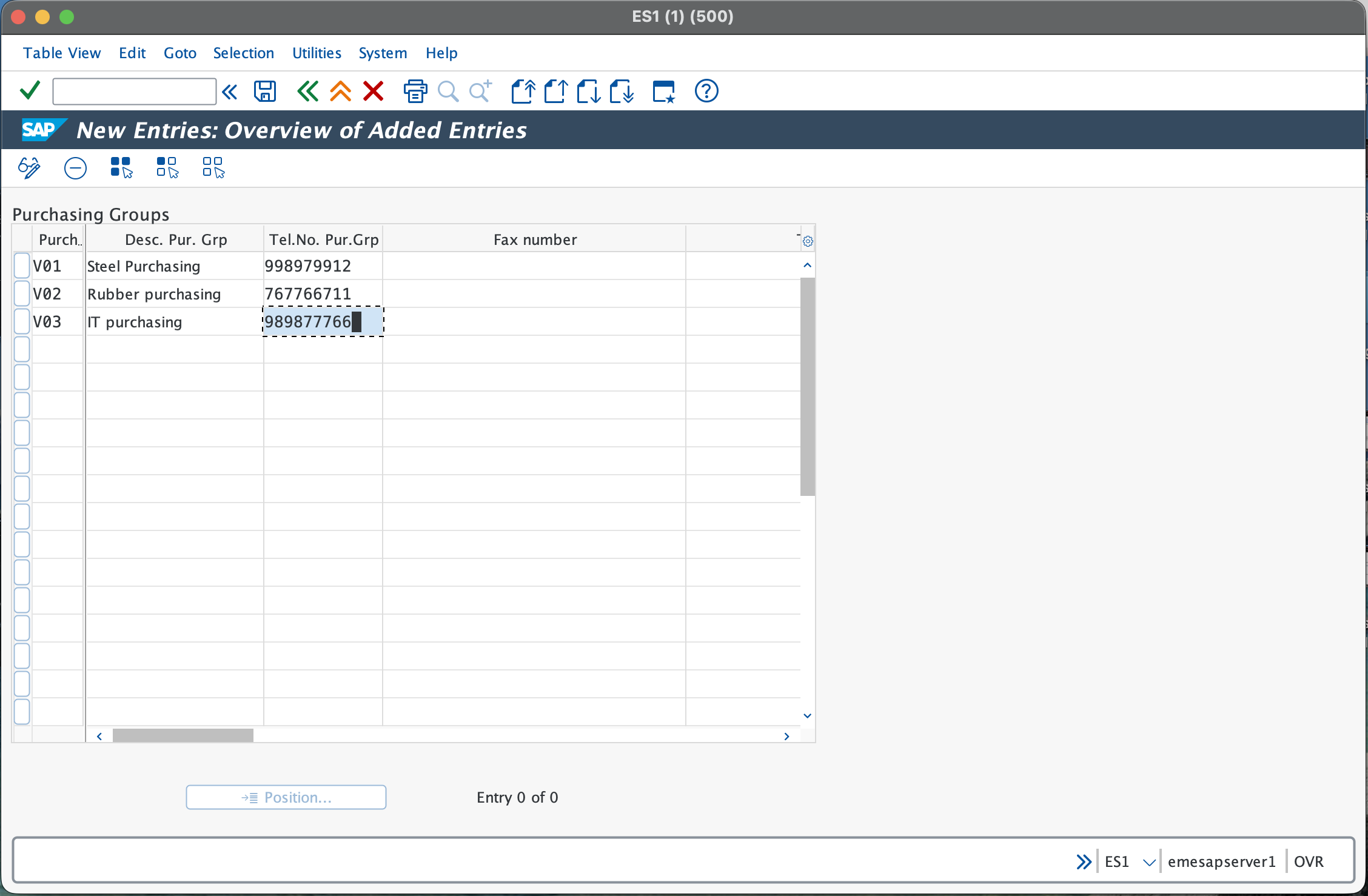
Now we are on the screen where you create purchasing groups, in the leftmost column you need to enter 3-digit alphanmueric code for purchasing group, this will be the identifier and also give a small description. As you can see from the image above you can create multiple ones at a time. So once you are done filling all the relevant details just click on the save button on top and you have now created a purchasing group.